Optimizing Response Time (1) - DB Connection
"Chatbot is too slow"
When I first built the Woorinara chatbot, I received feedback from my team members:
"The chatbot is too slow."
I admitted it. The chatbot really was slow.
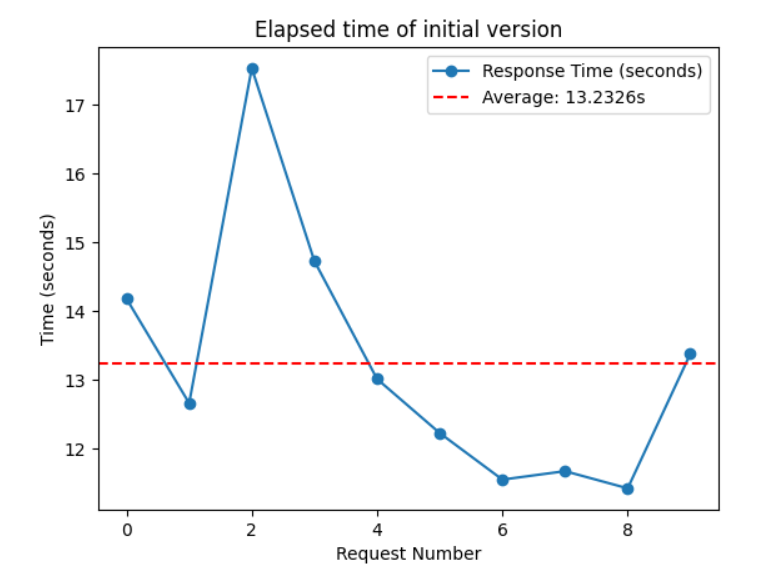
Average Response Time (10 requests): 13.2326 sec
This caused many problems.
Users sent messages when they did not receive an immediate reply.
→ This consumed the AI server's resources and directly increased the cost of our service.
Users exited the app.
→ This resulted in a huge loss for our service.
What Makes the Chatbot Slow?
1) Connection to the Vector Database
- Problem: On every request, the AI server initialized the vector database.
- Elapsed Time: Average 3 sec
- Solution: Once the DB is connected to the AI server, it should be reused for further requests.
2) LLM Model
- Problem: The AI server had to wait until the LLM completed the whole answer. The longer the answer, the slower the chatbot.
- Elapsed Time: 3 ~ 10 sec
- Solution:
Response Streaming
3) Cold Start of Lambda Server
- Problem: When a Lambda server is triggered by the request, a new execution environment is created. This may take a while.
- Elapsed Time: Around 10 sec
- Solution: Send a request to the Lambda server every 5 minutes to keep it running by using AWS EventBridge.
Learn more about Lambda cold starts
Let's address the first issue!
Reuse DB Connection (feat. Lifespan)
We will now talk about how to remove DB connection time using FastAPI's LifeSpan.

FastAPI is a modern, fast (high-performance), web framework for building APIs with Python based on standard Python type hints.
FastAPI Lifespan
- We can define logic (code) that should be executed before the application starts up.
- Lifespan is very useful for setting up resources that need to be used for the whole app and shared among requests (e.g. Database, Machine Learning models).
Apply Lifespan to Solve the Problem
- Assume we connect the Vector Database when the app starts.
- In
main.py, let's putvector_storein thelifespanfunction and wrap it with a decorator called@asynccontextmanager.
# main.py

from contextlib import asynccontextmanager

from fastapi import FastAPI

vector_store = None
@asynccontextmanager
async def lifespan(app: FastAPI):
    # Load the Vector store when appication is initialized
    global vector_store

    vector_store = 1
    print("vector store initialized")
    print("vector_store: ", vector_store)
    yield
    # Clean up vector store and release the resources
    vector_store = None

app = FastAPI(lifespan=lifespan)

@app.get("/")
def read_root():
    return {"message": "Welcome to the chatbot API!"}

if __name__ == "__main__":
    APPLICATION_PORT = 8000
uvicorn.run("app.main:app", host="127.0.0.1", port=APPLICATION_PORT, reload=True)- Execute main.py
INFO:     Will watch for changes in these directories: ['C:\\Users\\Beom\\woorinara-chatbot-api']
INFO:     Uvicorn running on http://127.0.0.1:8000 (Press CTRL+C to quit)
INFO:     Started reloader process [10388] using StatReload
INFO:     Started server process [17920]
INFO:     Waiting for application startup.
**vector store initialized
vector_store:  1**
INFO: Application startup complete.- We can see that
vector storewas initialized when the app started. - Since
vector storebecame a global variable, it can be used in other files.
How Much Time is Saved?
Now, we do not need to initialize the vector store on every request.
Connect it only once and reuse it. 😎
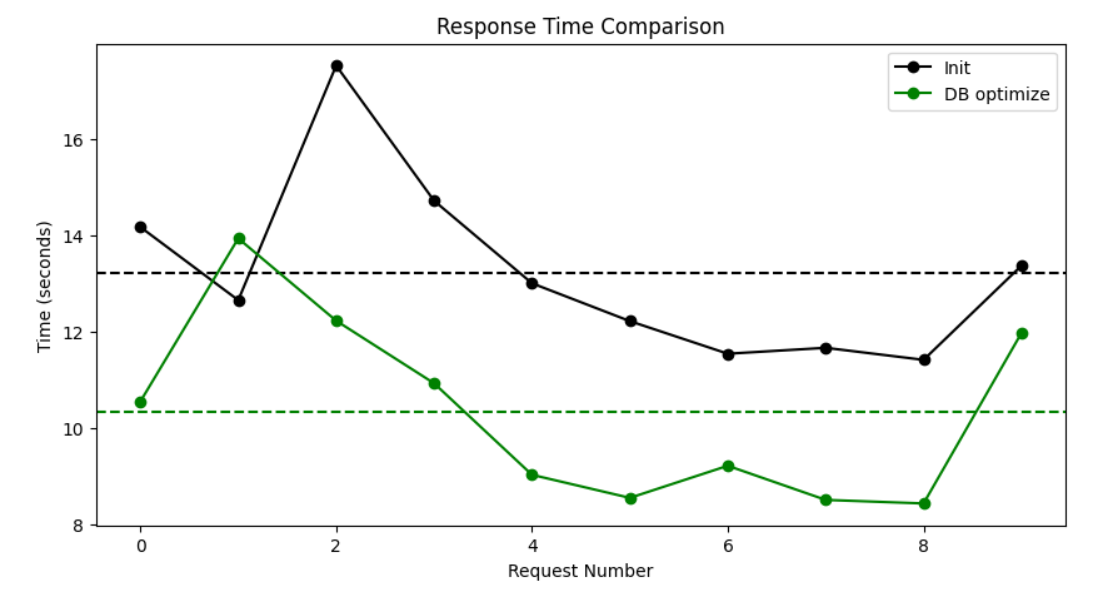
Average Response Time (3 sec ⬇️)
- Before: 13.2326 sec
- After: 10.3380 sec
The response time went down to around 10 seconds. 2.8946 sec has been saved!
In the next post, I will show you how to cut response time in half. Stay tuned for the next post!